Equilab can pull in Equestrian and Hiking workouts that you recorded outside the app (with an Apple Watch or iPhone using Fitness app, or another app that saves your trainings to Apple Health) and turn them into trainings. You can import them automatically as they happen, or go back and pick out individual trainings yourself. This feature is only available on iPhone, and requires an Equilab Premium subscription.
Before you start
- This feature is available on iOS only
- Apple Health import isn't available on Android
- It is a Premium feature
- You'll need an active Equilab Premium subscription to import trainings (manually or automatically)
- Only Equestrian and Hiking workouts are supported
- Want your route to appear on the map in Equilab? Choose Hiking as your workout type in the Fitness app on your Apple Watch or iPhone. Equestrian can also be imported, but doesn’t include route data
- Imported trainings won't have gait data
- Apple Health doesn't share the movement data Equilab needs to work out Walk/Trot/Canter, so this will be empty on anything you import
- Only the last 90 days are shown. Older trainings won't appear in the list and can't be imported
Turning on Apple Health access
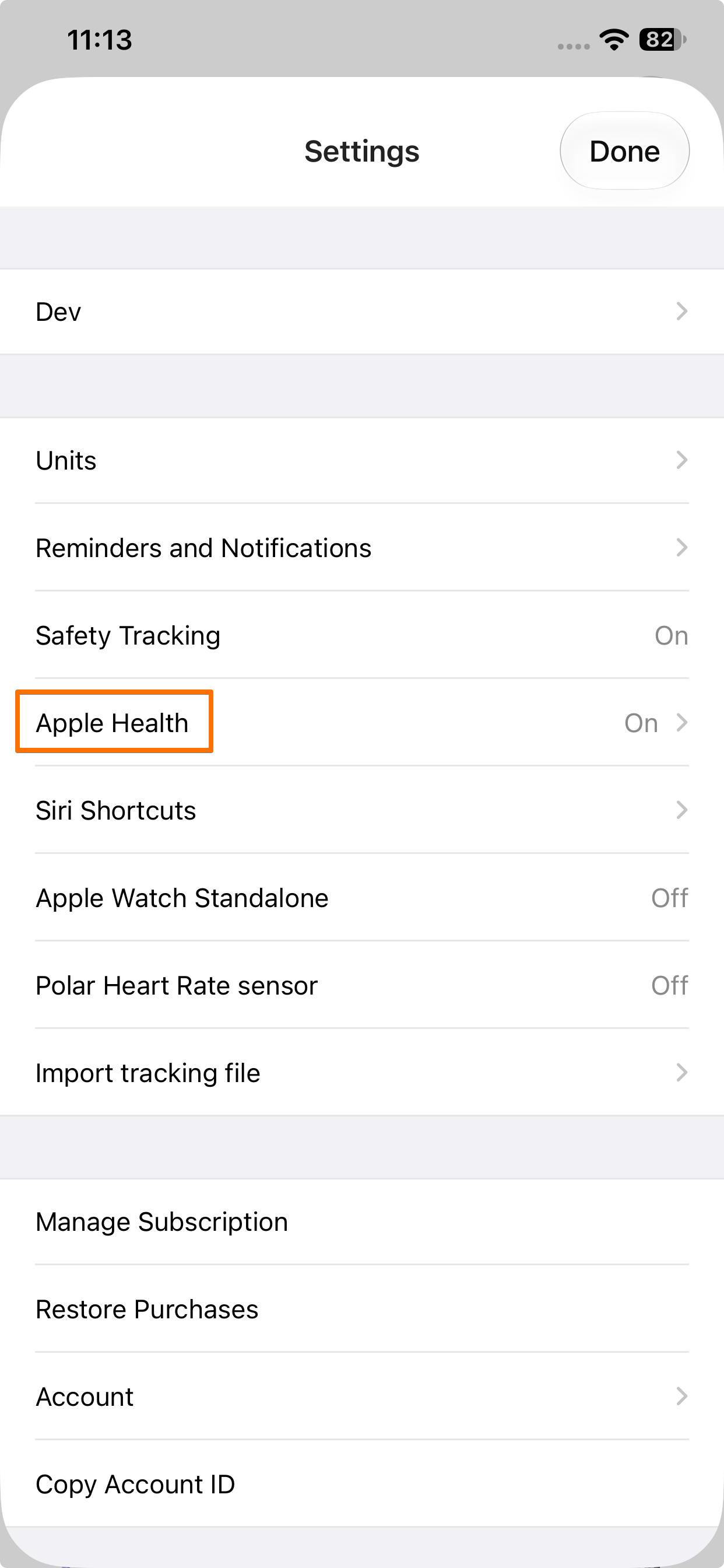
- In Equilab, go to Profile → Settings → Apple Health
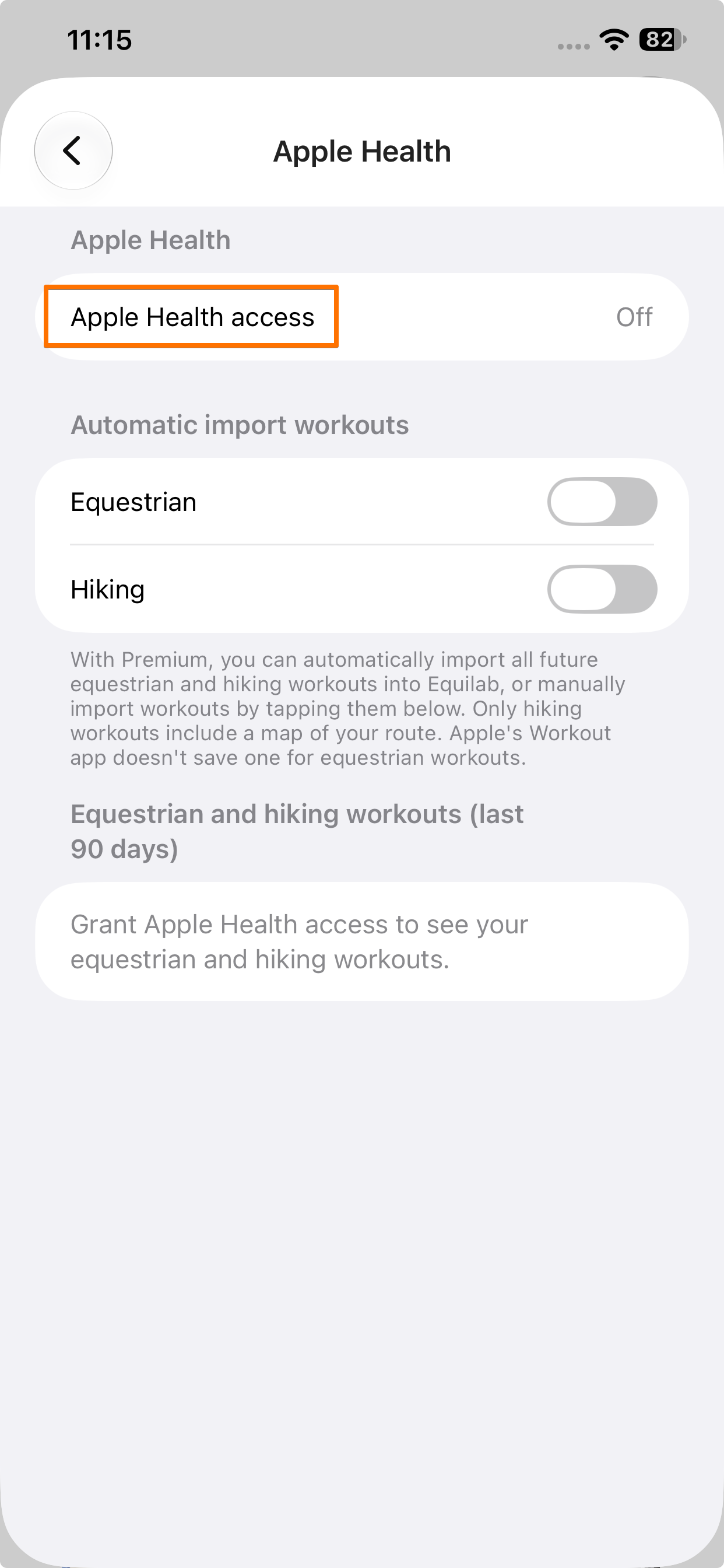
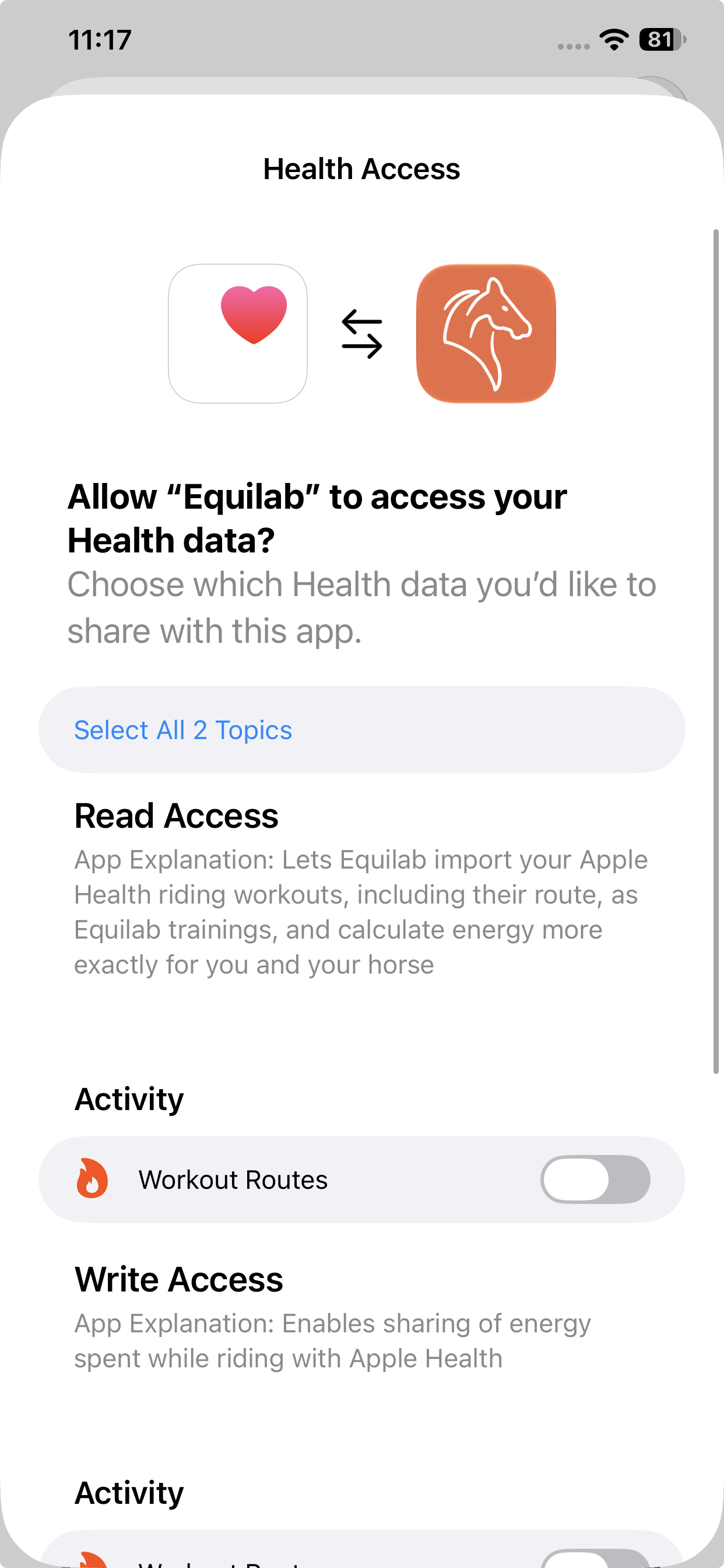
- The first time you open this screen, tap the Apple Health access row. Apple's own permission screen will pop up. Make sure to allow all of the requested categories.
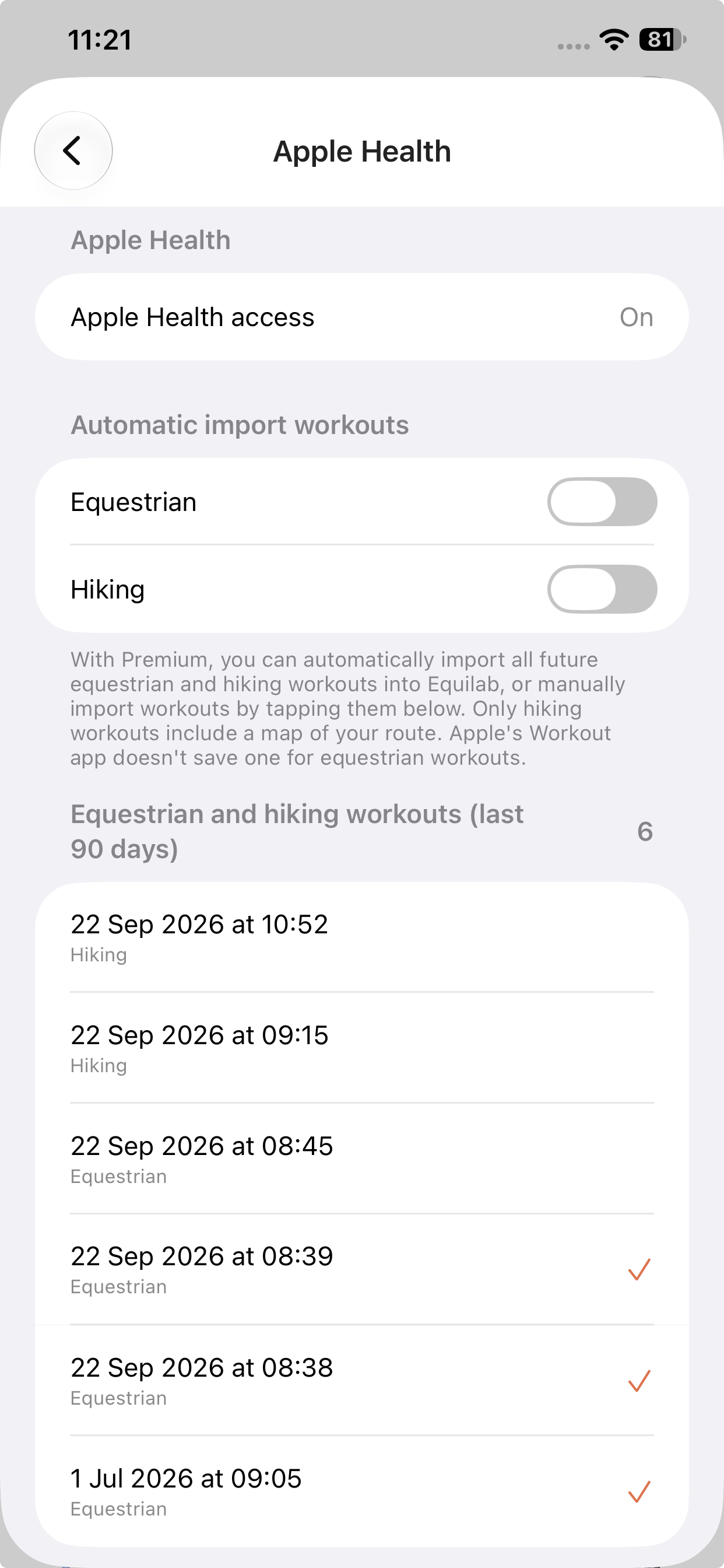
- Once you've allowed access, the row will show On, and your list of available trainings will load underneath it.
If you deny access instead, the row will show Off, and Equilab will explain that it needs access to Apple Health before it can show you any trainings.
To manage access later, tap the row again while it's already On. You'll get a message telling you to manage access in the Health app.
The training list
Once access is on, you'll see a list of your Equestrian and Hiking trainings from the last 90 days, newest first. Each row shows the date and time, with the workout type (Equestrian or Hiking) underneath.
- The number next to the list heading tells you how many trainings there are on the list
- If a row already has a tick, it means that ride was already tracked in Equilab - either with your phone or an Apple Watch - so it can't be tapped or imported again
Importing a training manually
You can import any training on the list that doesn't already have a tick:
- Tap a training without a tick
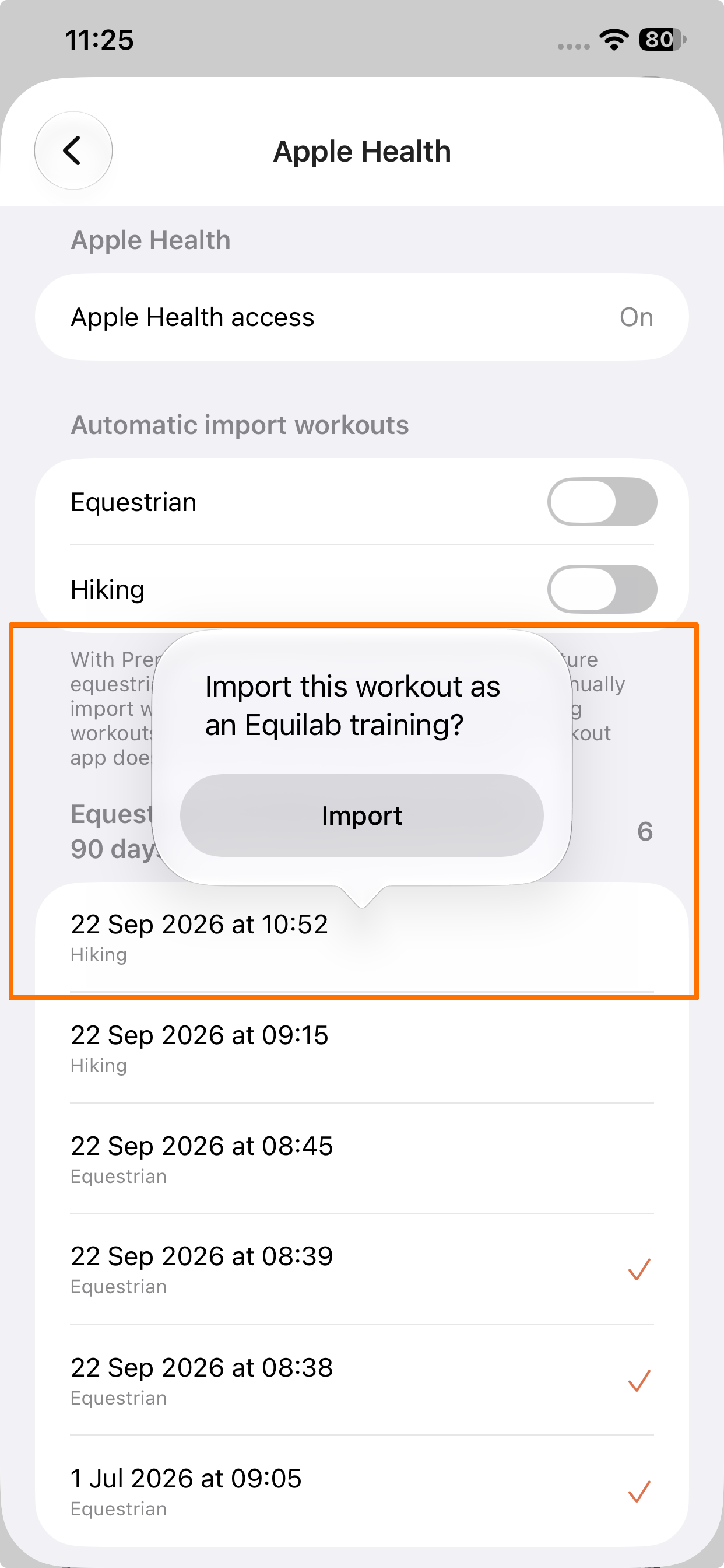
- Confirm the import when prompted
- The After Training screen will open. Pick the horse you rode, add a note or gaits if you'd like, and tap Save
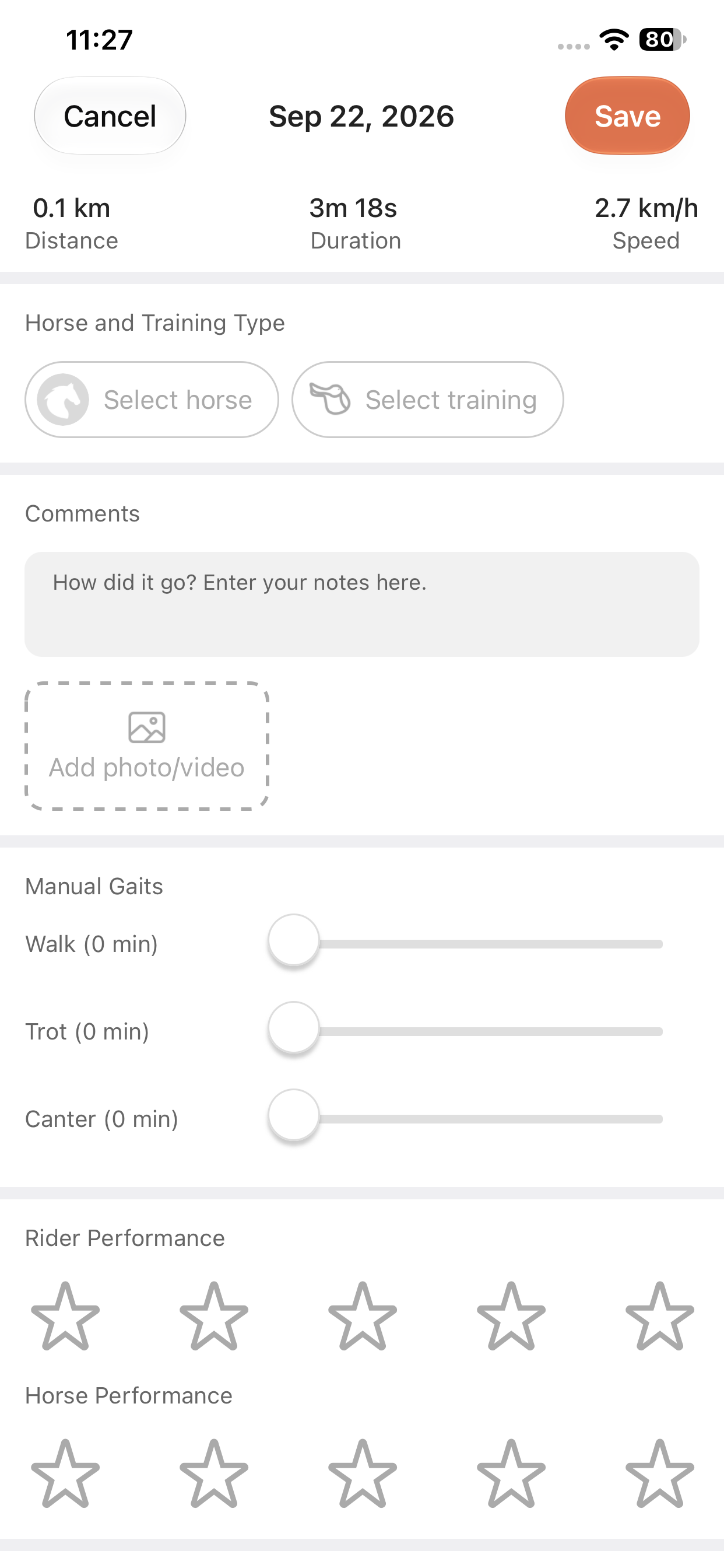
The training will now appear in Equilab with the correct date, time, duration and distance.
- Hiking imports include a map. Equestrian imports don't.
- Once imported, that training will show a tick on the Apple Health list. Tapping it again won't do anything; a training can't be imported twice.
- If you delete an imported training from Equilab, its tick will disappear from the Apple Health list, and it'll be available to import again.
Turning on automatic import
If you'd rather not import trainings one by one, you can turn on automatic import for Equestrian and/or Hiking workouts separately.
- On the Apple Health settings screen, find Automatic import workouts and turn on the toggle for Equestrian, Hiking, or both
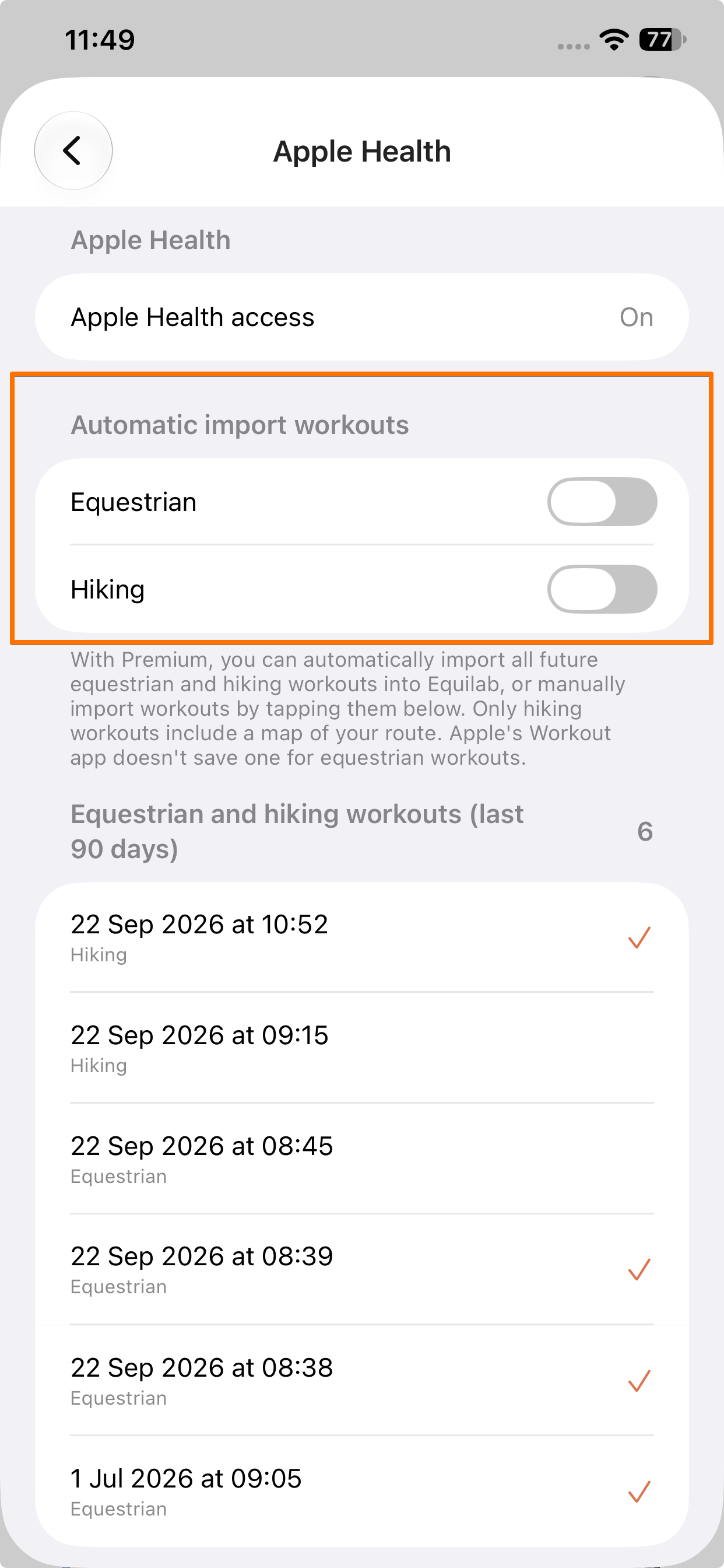
- From then on, any new Equestrian or Hiking workout you record (on your Apple Watch, in Apple's Workout app, or elsewhere) will be brought into Equilab on its own:
- If Equilab is open, the After Training screen will open automatically for that training
- If Equilab is closed or in the background, you'll get a notification - tap it to go straight to the training
A few things worth knowing about automatic import:
- Turning a toggle on doesn't import old workouts. Only workouts recorded from that moment onward come in automatically. Anything already on the list can still be imported manually by tapping it.
- The two toggles work independently. Turning on Equestrian doesn't turn on Hiking, and vice versa. Each type only imports automatically if its own toggle is on.
- Turning both toggles off stops automatic imports. New workouts will just sit on the list until you import them manually.
- Briefly turning a toggle on and then off again won't cause anything to import in that short window.
Good to know
- No gaits. Whether imported manually or automatically, an imported training will never have Walk/Trot/Canter data. Apple Health simply doesn't provide the movement data Equilab needs for that. You can still add gaits manually afterward if you'd like.
- Distance without a speed. An imported workout without a map (i.e. an Equestrian one) can still show a distance, but its average speed may show as 0 km/h.
- Two automatic imports at once. If two trainings import automatically at the same moment while you're on the After Training screen, the second one may not open on its own or send you a notification. It's still been saved, you'll find it in your calendar.
Looking to import training files to Equilab?
If you'd like to import training files instead, please refer to our guide on How to import training files to Equilab.
Looking to export your Equilab trainings instead?
If you'd like to export your training data from Equilab, please refer to our guide on How to export trainings.
If you have any additional questions, please feel free to contact us at support@equilabapp.com. We're always here to help.
Was this article helpful?
That’s Great!
Thank you for your feedback
Sorry! We couldn't be helpful
Thank you for your feedback
Feedback sent
We appreciate your effort and will try to fix the article